Another neat feature with iOS 6 for your iPhone, iPad and iPod touch is that you can go back more than one page at a time to return to another page you have visited whilst surfing the internet. Previously you could only go back one page at a time. This will make using the internet on these devices quicker than before. In this video below you will see how it works on an iPhone but it works the same way on an iPad or iPod touch.
So there is a brand new iPhone and for those of us still content with the older versions of our iPhone and also iPad there is a new iOS which runs these devices. You will notice a few changes like the YouTube app is missing, although you can download a free one from the App store, and the way the maps work, and a lot of people are not happy at all about the maps. More about that in another blog soon.
One thing that has changed is how Podcasts are managed. You used to find them on the iTunes store where you could download them and subscribe, this has now changed. You can still find them in the iTunes store but when you select one you then go to a new app, Podcasts, which you might have to download from the App store if it is not already on your device. You can also find the podcasts in the Podcasts app rather than going through iTunes.
It has a whole new layout and more control over the settings. Watch the video below to see how it now works.
You probably keep hearing about iOS when people talk about the iPhone, iPad or iPod touch and you’re not quite sure what it is.
iOS is simply what makes these devices work, which is why you might here them referred to collectively as iOS devices. An OS is an operating system and the i refers to the fact that the operating system is for these devices iPhone, iPad and iPod touch.
So just what does an operating system do and particularly on one of these iOS devices. Well it is the software that controls the device and gives you all the software that comes with the device including the ability to make calls, get email, use maps, music, videos, iCloud, notifications, the App store etc etc.
So when Apple says it is giving us a new iOS like iOS 5 or iOS 6 we are getting new features and new software. It is sometimes like getting a whole new device. Quite often the software might be too sophisticated for old devices and they cannot be upgraded, partly because it might taking advantages of new hardware like a built in camera or faster processors.
New iOSs usually come out once a year and coincide with a new device like an iPhone, this year it is the iPhone 5. However, the new iOS 6 which is due out on September 19th 2012 works on older devices such as the iPhone 3gS, 4 and 4S, the iPad 2 and 3, and the iPod touch 4th generation. It’s quite simple to do, all you need to do is go to Settings, then tap on General and then tap on Software Update and choose to install it. You might find that if you are not in the USA the software will come out in the evening to coincide with when it is available in the USA.
Sometimes you get small updates to the OS and are labelled as iOS 6.0.1 or iOS6.1 depending on how much is updated. The updates are usually fixes or security updates. Some updates in the past have been to improve battery life or to plug a security hole. They can also be to add a new feature.
So what will iOS 6 give us? Well there are new maps made by Apple and not Google, these should be faster and will have turn by turn navigation, you know like how a Tom Tom talks to you. Do not disturb, that will stop you getting woken up in the middle of the night because you forgot to switch it to silent. Call rejection that allows you to reject a call and get it to send back a choice of text messages like I’ll call you back. Safari has more web pages that you can have open at one time. Panoramic camera feature.
Siri now can do more include controlling apps and for those of us outside the USA it will now find restaurants and businesses.
I like the VIP email which flags emails which are from people you have set up as VIPs, you can then also view the emails in their VIP inbox as well as usual inbox. Here is a video to show you how this works.
There’s so much to mention here and I’ve started writing the blog that will come out when iOS 6 is released, also created some videos to go with it. Yes, I have a test version.
I hope this clears up what iOS is all about. By the way, so many people try to download the new iOS on the day of release it is often recommended to wait a couple of days.
If you want to use symbols on the iPhone, iPad or iPod touch other than just some smilies then you can add another keyboard that allows you to do that. I use the symbols a lot when I am creating to do lists in notes, by using symbols it can indicate the task type such as filming or computer work, urgency or who I’ve asked to do that task. Visually it really helps me. It also livens up the lists a bit more rather than just plain text.
Do you have an iPhone or iPad and find that you get home or to your office and you think you are connected to wifi but nothing is coming through. Well I found this happening to me and some of my friends. That’s because it was picking up BTOpenzone rather than my home or office wifi. Thankfully it was easy to sort out. You need to tell it to forget the network, that doesn’t mean you can’t get back to it, it will still be listed but it won’t connect unless you ask it to.
There is nothing wrong with BTOpenzone itself but at home it doesn’t seem to work. Although it doesn’t always work when I’m out probably because there are times I’m not getting a good signal. Other times it works perfectly well. Same for many public networks, it just so happens that O2, which I use, connects to it free on my tariff.
Here’s how you do it:
Tap on Settings on your iPhone or iPad.
Tap on Wi-Fi
Tap on the blue arrow next to the network that you don’t want it to connect to
Tap on Forget this Network at the top. If it is not there you have already done it
You can always get it back if you are in range by going back to Wi-Fi in your settings and selecting it.
When you set up your email on your iPhone or iPad it seems very easy to set up and you are getting emails in not time and in most cases it is really this simple. However, every now and again someone tells me they are having trouble sending emails. It appears as though everything is correct and you have entered your password correctly otherwise you wouldn’t be getting the emails.
Here’s a catch that sometimes crops up, you need to enter the password to send the emails too, it is usually the same password you used to set up the account which allows you to receive the emails. So how do you do it, this may vary slightly depending on the account.
Go to your Settings on your iPhone or iPad
Tap on Mail, Contacts, Calendars
Tap on the account that is not sending
Tap on where is says Account with the name or email address of the account next to it
Where it says Outgoing Mail Server you will see a box that says SMTP, tap on this. If you have a Me.com or iCloud, you need to tap on Advanced and then you will see this.
You will see Primary Server at the top or it could be just one server. Tap on it.
In there is a place to enter your password, if it is blank or says optional, add in your password. Try that and if it still does not send then in the same place you might need to switch on SSL or you may need to change the server port, possible settings for the server port include 25 or 587. Do each of these one at a time and test to see if it works.
Hope that helps. If it doesn’t please drop me a line using the comments box below and let me know what device you are using and who you use for your email like gmail, hotmail, iCloud etc
For those of us that live in London we have two main bugbears the London Underground, affectionately known as The Tube, and the weather. I’m ire wherever you are in the world you are aware of the weather we endure in our green and pleasant land and many visitors think we have a great transport system. Well its not bad but creaking a bit under the volume of travellers and simply the age of the system.
However, Mr Branson has brought us some relief, Wifi on the Tube courtesy of his company Virgin Media. It’s not at all stations yet but it is growing and available at key stations. Now that’s important. It’s at stations which means in ticket halls and platforms but not in the tunnels. But this is useful. You can quickly check your emails and maybe even reply to some, check Facebook, Twitter and read my blog 🙂 and even get to check your favourite website or travel information. I guess if there are delays you can do more.
On my iPhone I was able to use iMessage to text anyone I knew with an iPhone which is most people, although I couldn’t get FaceTime to work. It would connect but couldn’t talk or see the person at the other end.
So what do you have to do to get it to work. Firstly you need to be at a station with wifi from Virgin Media, you can check on which stations have it by clicking here.
When you connect which usually means going into settings and choosing the wifi connection if it hasn’t prompted you. Now go to your browser, this is important, each time you connect you need to go to the browser to register you on the network. If you straight to your email or twitter app it won’t connect. If it’s your first time you will need to register, it is not much information just your email address.
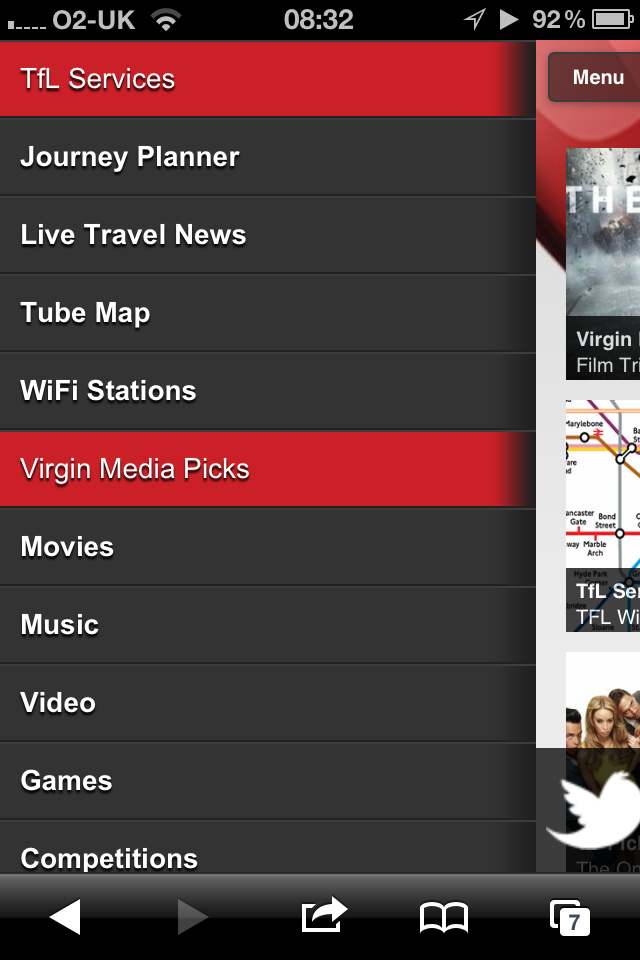
Each time you connect after you have activated an account you will see the Virgin Media splash page. After that you can surf the Internet but before you do the Virgin Media splash screen for have some useful links including latest travel news.
Welcome Page
Activation Page
Splash Screen
More Links
Virgin Media Menu
At the moment the kind Mr Branson is letting us have free wifi on the underground for the summer of 2012, so don’t expect this free service to last much past the end of the Paralympic games. How much it will then cost is not known yet, people with Virgin Media at home are bound to have a different deal than those who do not.
Hopefully they will accommodate all the visitors we have to London whether they are here for a day or more.
The iPhone and iPad don’t have a dictionary app yet it does have a dictionary that you can use. It works on any app where you can select a word like looking at a website using Safari, email, Pages, Notes and others.
If you use Microsoft Word you may want to add headers and footers but you want something different on the first page or perhaps nothing at all. For example, you may want nothing on the first page and then the page numbers on subsequent pages. You can also have something different on odd and even pages so you could have book title on the odd pages and chapter name on the even pages. You can also use a combination of different first page and odd and even pages.
This little tip could speed up how you work and may well stop you getting that spinning wheel on your Mac. Your Mac is good at giving back memory it has been using when you close a file or program but sometimes it does not or not as quickly as you would like.
In this video tutorial you will see how to purge the memory and learn a little bit about the Activity Monitor.


 Gary Schwartz's Blog